Canva Review: The Design Tool Anyone Can Use
Canva review: the drag-and-drop design platform with templates, Magic Studio AI, brand kits, and team collaboration — features, pricing, pros and cons.
Expert Review

What is Canva?
Canva is an online design platform that lets anyone create professional-looking graphics without design training. Instead of a blank canvas and a steep learning curve, you start from a template, drag elements around, swap in your text and photos, and export — all in a browser. That simple idea has made Canva one of the most widely used creative tools in the world, with hundreds of millions of people producing everything from Instagram posts to full pitch decks.
It serves an enormous range of users: students making assignments, small-business owners building their own marketing, social media managers churning out daily content, and marketing teams inside large companies standardizing their brand. The core is a drag-and-drop editor backed by a vast library of templates, stock media, and fonts, and in recent years Canva has layered a suite of generative-AI tools — branded Magic Studio — directly into that editor.
Benefits of Using Canva
- No design skills needed: the drag-and-drop editor and ready-made templates let complete beginners produce polished designs in minutes.
- One tool for everything: social posts, presentations, documents, videos, websites, and printables all live in the same editor instead of separate apps.
- Huge asset library: millions of templates, photos, videos, icons, and fonts mean you rarely start from scratch or hunt for stock media elsewhere.
- Built-in AI: Magic Studio generates images and copy, removes backgrounds, and resizes designs, cutting out tedious manual editing.
- Real-time collaboration: teams can design, comment, and approve together, with brand kits keeping everyone on the same colors, logos, and fonts.
- Works everywhere: it runs in any browser plus desktop and mobile apps, so a design started on a laptop can be finished on a phone.
Key Features of Canva
-
Drag-and-drop editor
Canva's editor is its heart: a visual workspace where you position text, images, shapes, and video by dragging them into place. Smart guides, alignment tools, and one-click resizing make it approachable for beginners while still fast enough for daily professional use. There is nothing to install and no manual to read.
-
Templates and content library
Rather than starting from a blank page, you pick from a library of hundreds of thousands of professionally designed templates for every format — posts, stories, flyers, decks, resumes, and more. Each one is fully editable and paired with millions of stock photos, videos, graphics, fonts, and audio tracks built right into the editor.
-
Magic Studio (AI tools)
Magic Studio is Canva's generative-AI layer. It can create images from a text prompt, write and rewrite copy, remove or replace backgrounds, expand images, translate designs into other languages, and instantly resize a design for a different platform. These tools sit inside the normal editing flow, so AI feels like a shortcut rather than a separate product.
-
Brand Kit and team collaboration
The Brand Kit stores your logos, brand colors, and fonts so every design stays on-brand, and brand controls can lock those elements for larger teams. Multiple people can work on the same design at once, leave comments, and route work through approvals — turning Canva into a shared workspace, not just a solo tool.
-
Presentations, video, and print
Beyond static graphics, Canva includes a presentation mode, a timeline-based video editor, website publishing, and a print service that ships business cards, posters, and merch to your door. That breadth is why many users treat it as an all-in-one content studio rather than a single-purpose design app.
Pricing of Canva
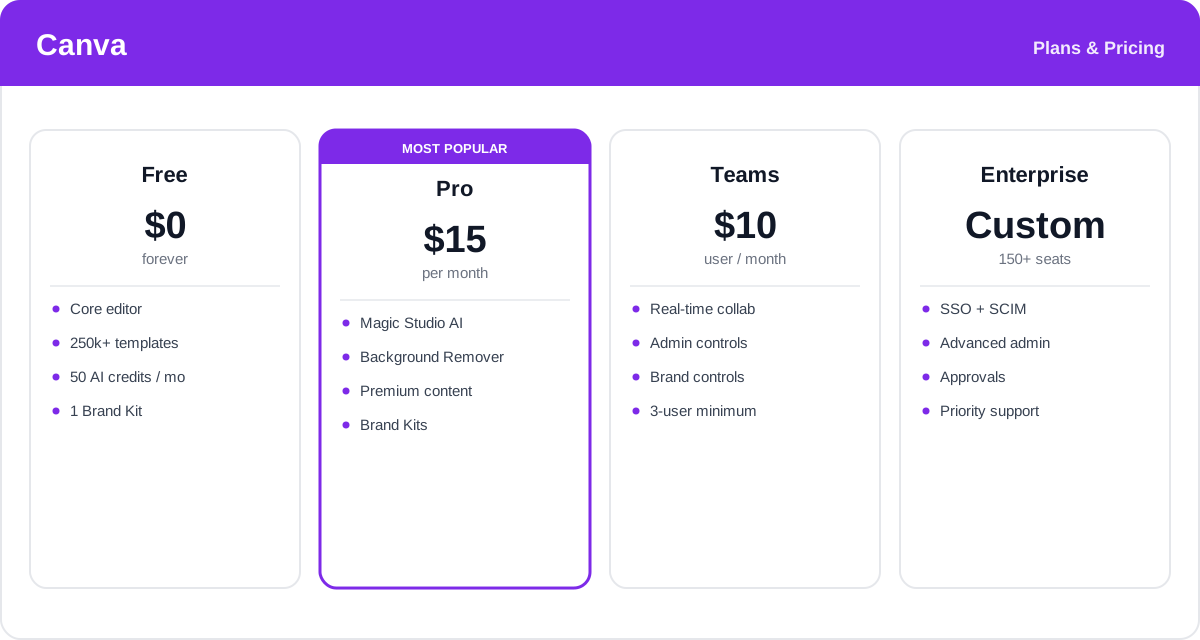
Canva uses a freemium model with a genuinely capable free tier. Paid plans unlock premium content, the full Magic Studio AI feature set, and brand and team controls, and annual billing is cheaper than paying monthly.
- Free: $0 — the full editor, 250,000+ free templates, basic AI credits, and one Brand Kit. Enough for many individuals to never pay.
- Pro: around $15/month (cheaper billed annually) for one person — premium templates and stock, the full Magic Studio AI, Background Remover, brand kits, and 24/7 support.
- Teams: around $10/user/month with a three-user minimum — everything in Pro plus real-time collaboration, brand controls, and admin management for organizations.
- Enterprise: custom pricing for large organizations — advanced security, SSO, approvals, and centralized administration, typically starting at a high seat count.
Prices and AI credit limits change over time and vary by region — check the official Canva pricing page for the latest rates and what each plan includes.
Real-World Use Case Analysis
Small Businesses and Solopreneurs
DIY marketing: owners without a designer create logos, menus, flyers, and a steady stream of social posts themselves, keeping a consistent look through the Brand Kit and saving the cost of an agency or freelancer for everyday work.
Social Media and Marketing Teams
High-volume content: teams produce daily posts across platforms, using templates and one-click resizing to adapt a single design for Instagram, LinkedIn, and stories, then collaborate and approve inside Canva instead of emailing files around.
Educators and Students
Presentations and assignments: teachers build worksheets and lesson slides while students create reports and projects, leaning on templates and Magic Studio to make polished work quickly, often entirely within the free plan.
Pros and Cons of Canva
Advantages
- Extremely easy to learn — genuinely usable by people with no design background.
- A massive template and stock library that covers almost every format and occasion.
- Magic Studio brings practical AI image, text, and editing tools into the normal workflow.
- Strong collaboration and brand controls for teams, plus a very generous free plan.
- One platform for graphics, presentations, video, websites, and print.
Disadvantages
- Less precise and powerful than professional tools like Photoshop or Illustrator for complex, pixel-level work.
- Heavy reliance on templates can make designs look generic if you do not customize them.
- The best content and AI features sit behind Pro or Teams, and AI credits are metered.
- Very large or media-heavy designs can feel sluggish in the browser.
Final Thoughts on Canva
Canva has done more than almost any tool to make design accessible, and for the vast majority of everyday creative work it is hard to beat. Its combination of an effortless editor, an enormous asset library, practical AI, and real collaboration makes it an easy recommendation for small businesses, marketers, educators, and anyone who needs good-looking content fast. It is not a replacement for professional design software when precision matters, and the best features require a paid plan — but the free tier is generous enough to prove the value first. For most people and teams, Canva is well worth adopting as their default design tool.