Webflow Review 2026: Visual Web Design That Ships Real Code
A 2026 Webflow review: how the Designer and CMS work, the confusing site-plus-workspace pricing explained, the learning curve, and who should choose Framer or WordPress instead.
Expert Review

Design in the browser, ship real code
Website builders usually force a choice. Drag-and-drop tools like Wix are easy but box you in, while hand-coding gives you total control and takes ten times longer. Webflow's pitch is that you can have both: you design on a visual canvas, and Webflow writes the production HTML, CSS and JavaScript underneath. There are no plugins to install and no theme to fight. What you build is what ships.
That is why it became the default tool for freelance designers and agencies. A designer who understands layout but does not want to write code can produce a fast, custom, hand-built-looking site, then hand the client a system they can actually update. The screenshot below is a real Webflow project: a live canvas on the left, the style controls on the right, editing a page that will publish as clean markup.
Inside the Designer
The Designer is the whole product, and it is unlike any other builder. Every element sits in a real box model, and the right-hand Style panel exposes flexbox, grid, spacing, positioning and typography as visual controls that map one-to-one onto CSS properties. If you know how the web is built, it feels like a design tool that finally speaks your language. If you do not, the same panel is a wall of unfamiliar terms.

Responsive design is built into the flow rather than bolted on. You style the desktop layout, then switch to tablet and phone breakpoints and adjust only what needs to change, inheriting the rest. The same project, viewed at a smaller breakpoint, keeps its structure while the type and spacing adapt.

CMS, hosting and AI
Static sites are the easy part. Webflow's CMS is what makes it a serious tool for blogs, portfolios and directories. You define collections and fields, design one template, and the CMS fills it with your content. The Premium plan carries a large ceiling, 20,000 CMS items and 40 collections, which covers all but the biggest content sites.
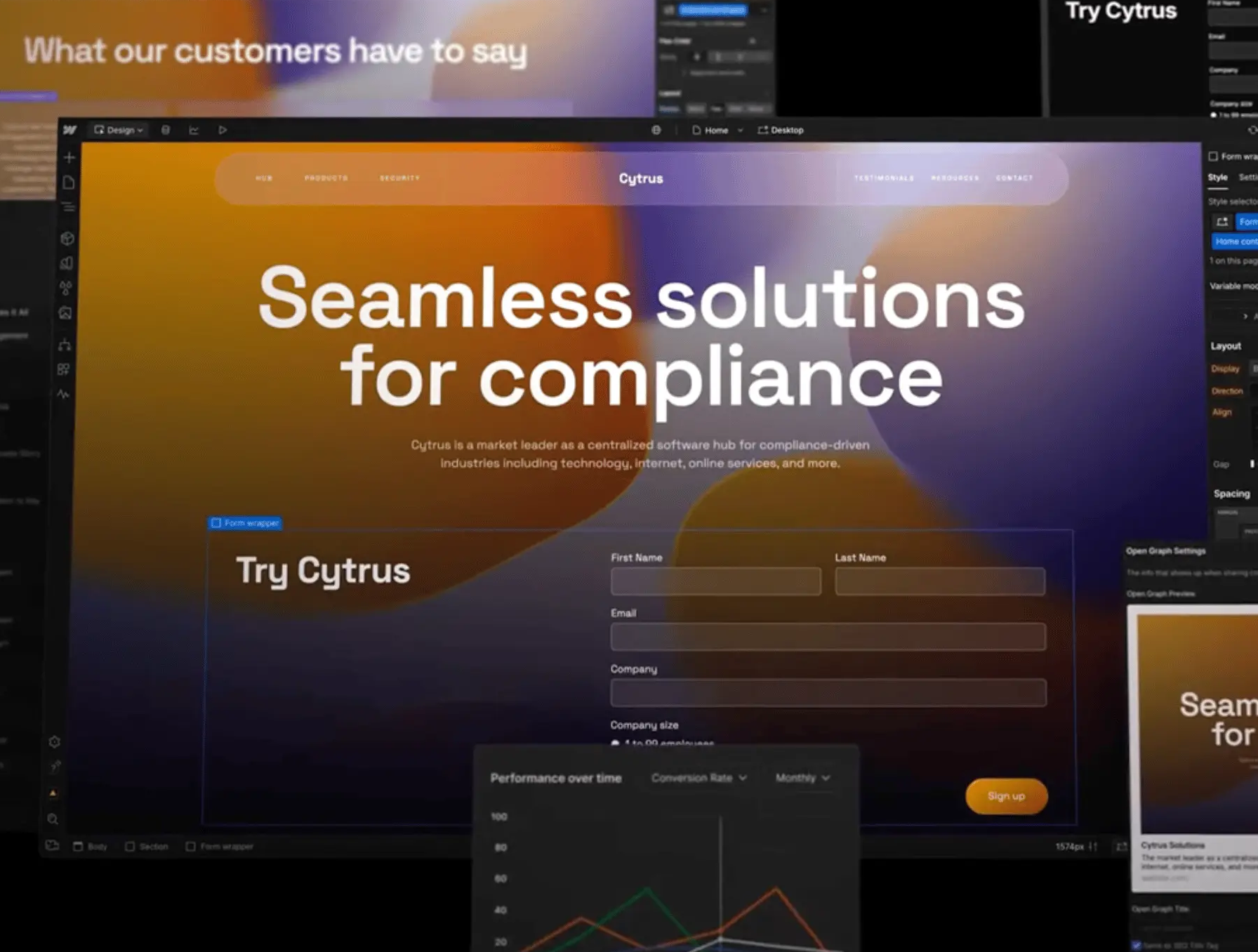
Hosting is included and runs on a fast global CDN, so you are not stitching together a host, a security plugin and a caching layer the way you would on WordPress. The 2026 releases lean hard into discovery and analytics: Webflow now bundles AEO tools aimed at getting a site cited by AI answer engines, plus an Analyze panel for traffic and conversion, and localization for multi-language sites. The montage below shows several of those surfaces at once: the CMS collection list, the canvas, a form and the analytics dashboard.

The two-plan pricing, explained
Webflow's pricing confuses nearly everyone, because you pay on two separate axes. A Site plan hosts and publishes one website. A Workspace plan covers the seats and build tools you use across projects. You often need both.
Site plans, checked on webflow.com in 2026:
- Starter: free, on a webflow.io subdomain, good for learning.
- Basic: about $15/month billed annually ($25 monthly), for a static site on your own domain with no CMS.
- Premium: about $25/month billed annually ($39 monthly). The May 2026 update folded the old CMS and Business plans into this single Premium plan, so the full CMS now comes at a lower price than the tiers it replaced.
Workspace seats bill on top: a full seat runs about $39/month, a limited seat about $15/month, and reviewer or commenter seats are free. Ecommerce is a further layer on the Site plan: Standard at roughly $29/month carries a 2% Webflow transaction fee, while Plus (about $74) and Advanced (about $212) drop that fee to zero.
The practical takeaway: a solo designer publishing one client site pays for a Site plan and can often stay on the free Workspace tier, while an agency running many sites and paid seats stacks both, and the bill climbs quickly. Add up your sites and your seats before you judge whether Webflow is expensive.
The catch: the learning curve
Webflow's strength is its weakness. Because the Designer exposes the real box model, you have to understand the box model to use it well. Concepts like flexbox, positioning and inheritance are unavoidable. A first-time user who expected a Wix-style drag-and-drop tool will bounce off it within an hour.
Two more honest limits. Ecommerce is capable but shallower than Shopify, and the 2% fee on the Standard plan eats into thin margins until you pay up. And the platform is genuinely sticky: a Webflow site is not a WordPress export you can drop onto any host, so leaving means rebuilding. Choose it knowing you are choosing the ecosystem, not just the editor.
Who should use it (and who should not)
Webflow is the right tool for designers, agencies and marketing teams that want full visual control, clean hosted code and a real CMS, and who are willing to learn how the web is built to get it. For a custom marketing site or a content-driven site you will maintain yourself, nothing else hits the same balance of control and polish. Start on the free plan, build one real page, and see whether the Designer clicks for you before you pay.
Skip it if you want the fastest possible path to a live page: Framer publishes a beautiful site with far less to learn, and Wix or Squarespace are gentler still. If you are running a serious store, Shopify will serve you better than Webflow Ecommerce. And if a plugin ecosystem and cheap portability matter most, WordPress remains the safer long-term bet. Webflow rewards the people who invest in it and frustrates the people who wanted to skip the learning.
Ready to try Webflow?
Visit the official website to see the latest plans, pricing, and special offers.
Get Started - Webflow* Affiliate link - we may earn a commission at no extra cost to you.